Regulatory requirements in various countries require that the event of viewing personally identifying information (PII) – such as address, full name, or ID – should be logged and monitored for future audit.
Regulatory requirements in various countries require that viewing sensitive data that can identify a person must be logged and monitored for future audit. This requirement applies to whenever someone is viewing identifiable information related to a person (such as address, full name, ID, etc.) the action must be monitored and logged.
This add-on enables the logging of information when any user views row-level data from specific tables and columns.
The level of logs can be modified to contain only the viewed field names or the viewed field values, as well.
The Monitoring Sensitive Data add-on consists of three components:
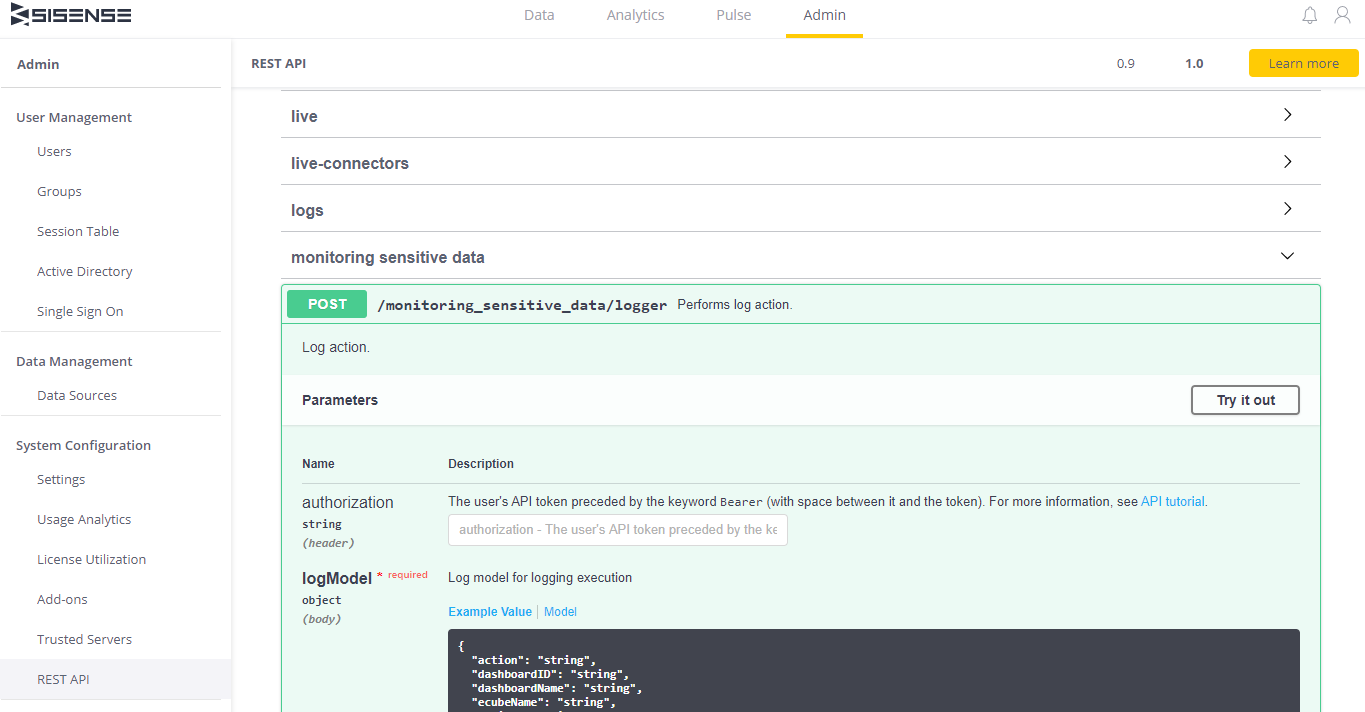
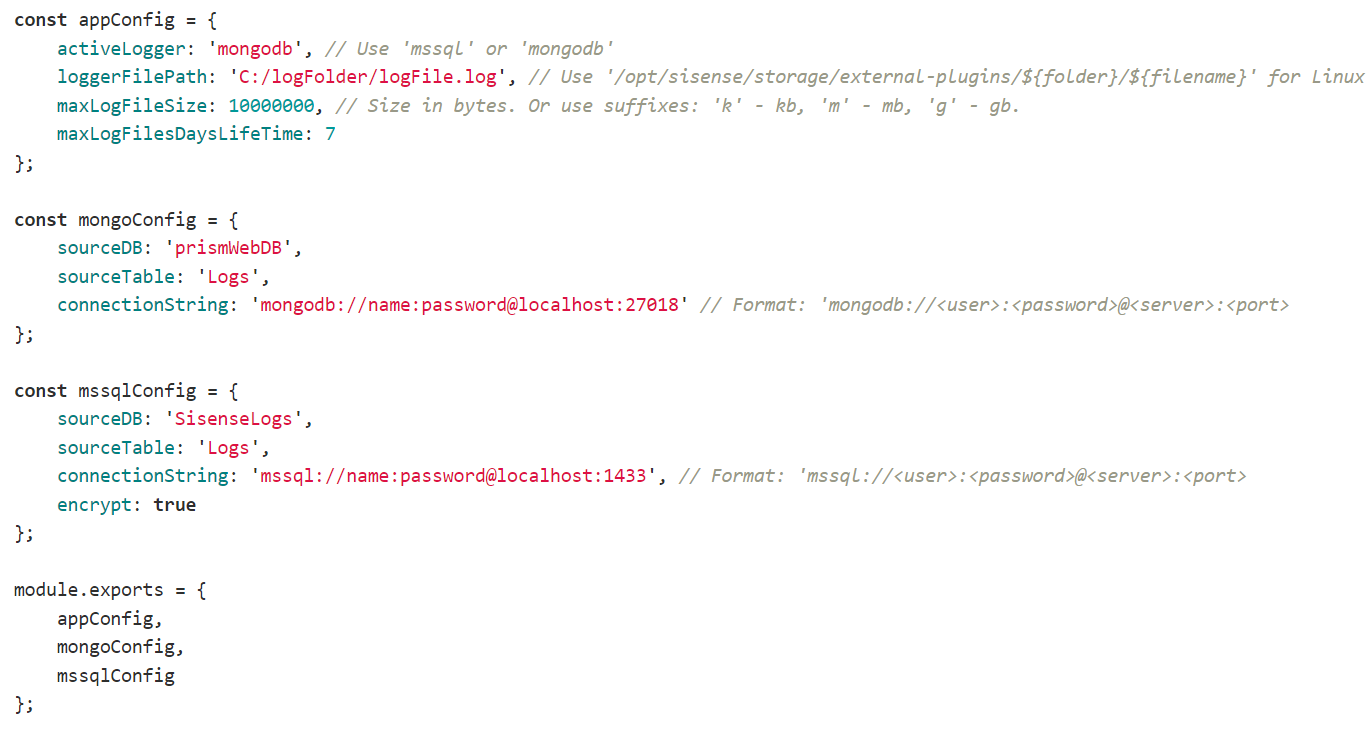
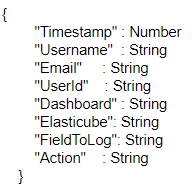
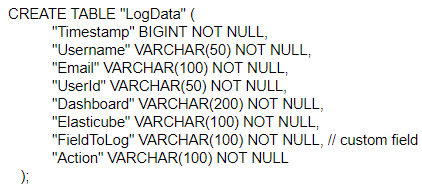
Server-side microservice (Windows) or an external plugin (Linux): Creates a new POST logger REST API endpoint that logs data to the configured logs database.
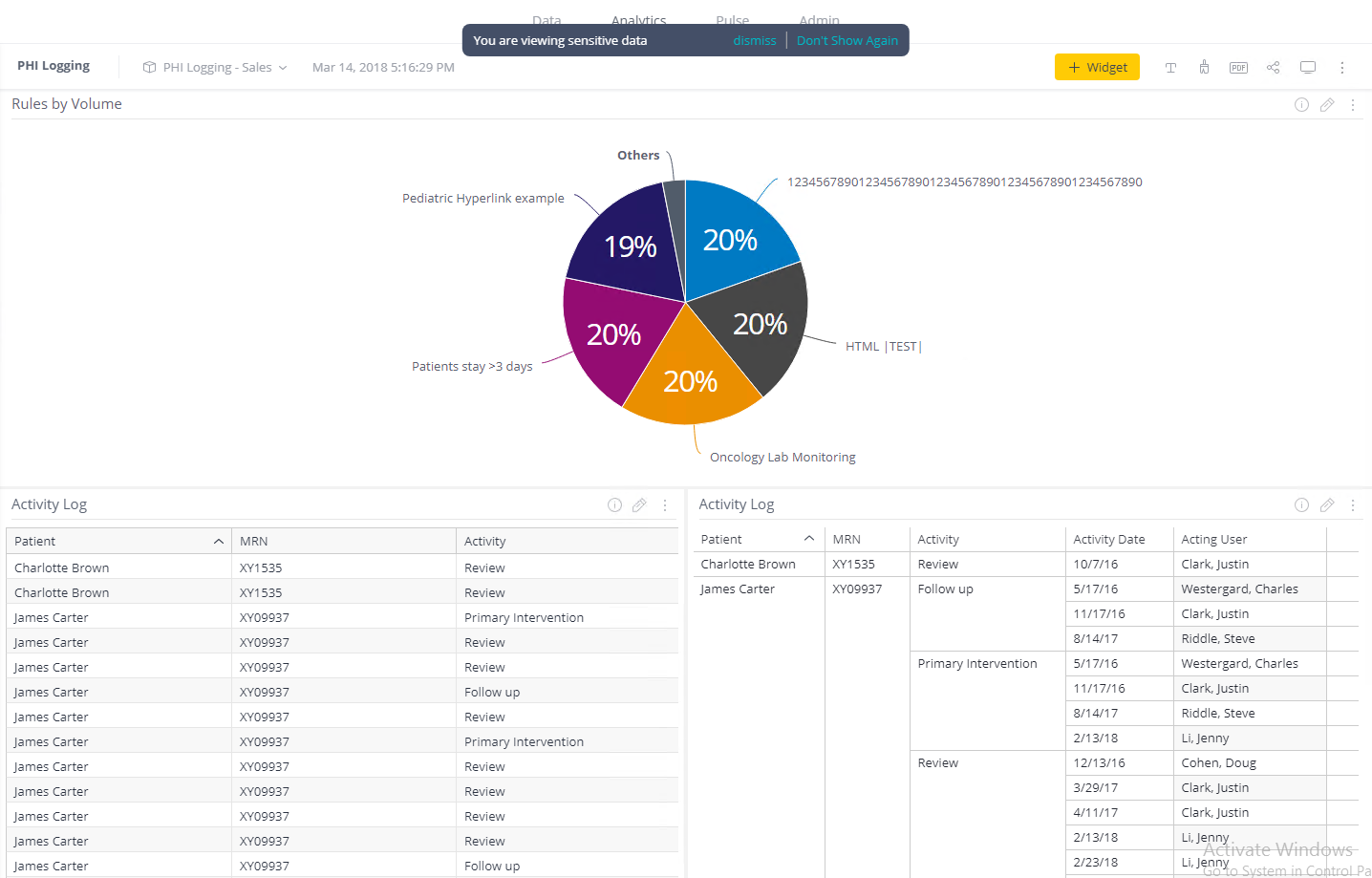
Client-side plugin: Notifies the user if sensitive PII is viewed.
Server-side plugin: Intercepts JAQL requests to detect if sensitive PII is viewed.
Installation
Windows:
Download and extract the add-on .zip file.
Install the client-side plugin by copying the folder ./monitoringSensitiveData into the HireLoop plugins folder:
C:Program FilesSisenseappplugins
If the folder doesn’t exist, create it.
Configure the client-side add-on as described below.
To install the microservice, run the PSE.Sisense.MonitoringSensitiveData.msi installer from the archive file.
Configure the microservice as described below.
Restart the windows service HireLoop.MonitoringSensitiveData to apply the configuration changes.
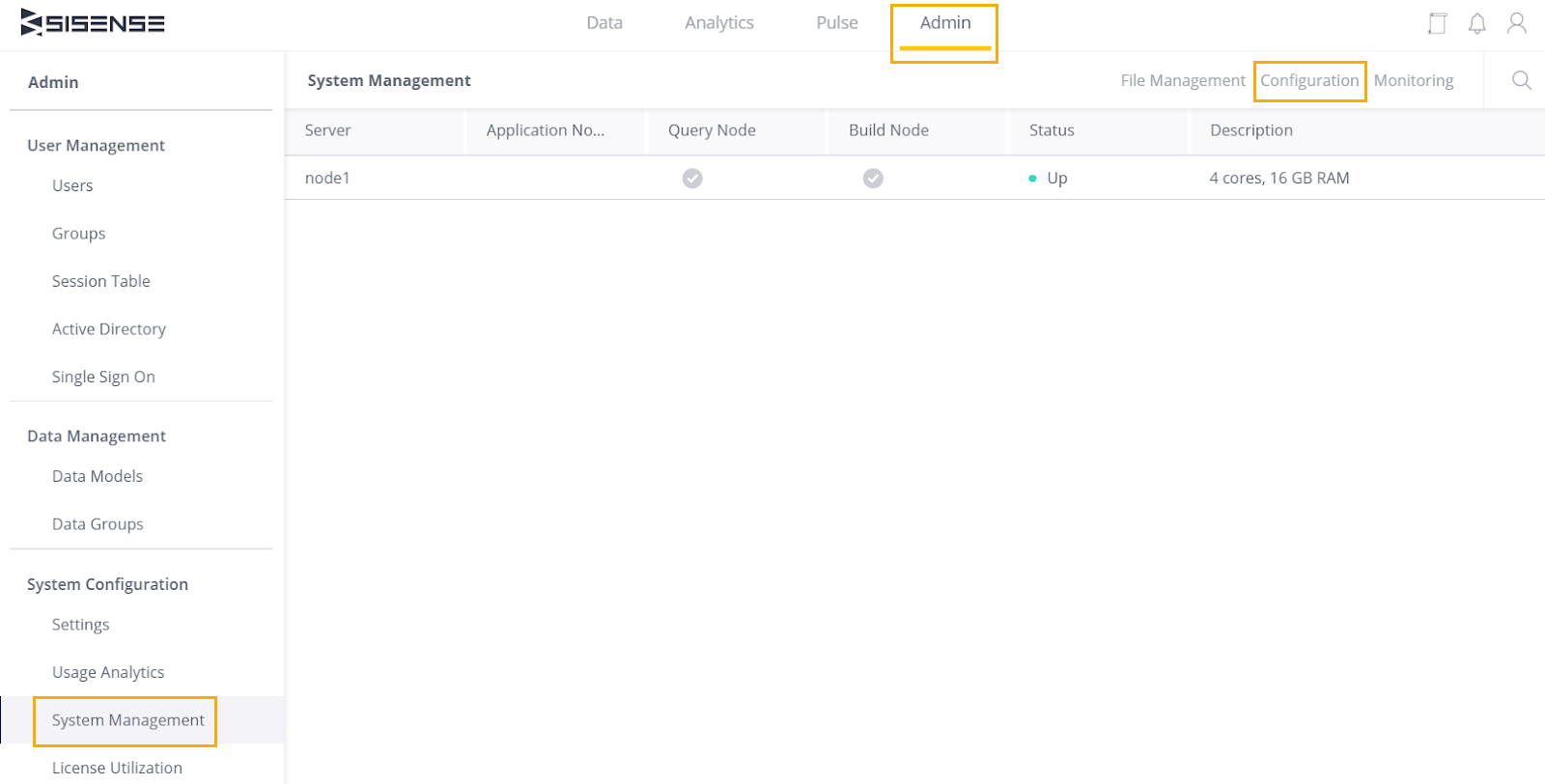
To install the server-side plugin, go to http://localhost:3030/ to open System Configuration.
Click the HireLoop top left logo five times to view advanced configurations.
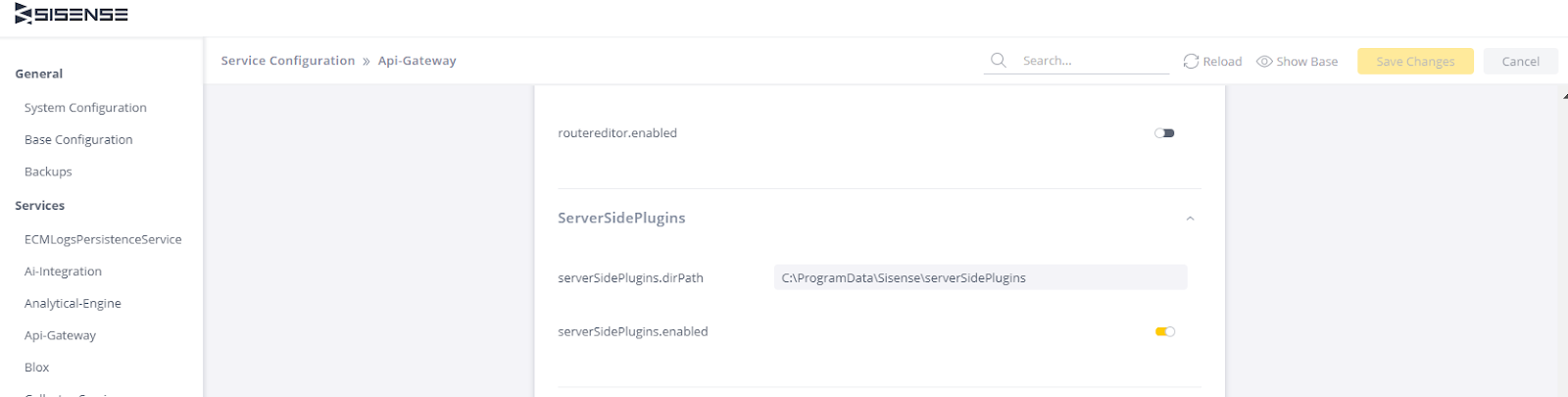
Click the Api-Gateway section.
Under ServerSidePlugins, enable serverSidePlugins.enabled.
Locate the ./monitorSensativeDataInterceptors folder under serverSidePlugins.dirPath.
Click Save Changes.
Configure the server-side plugin as described below.
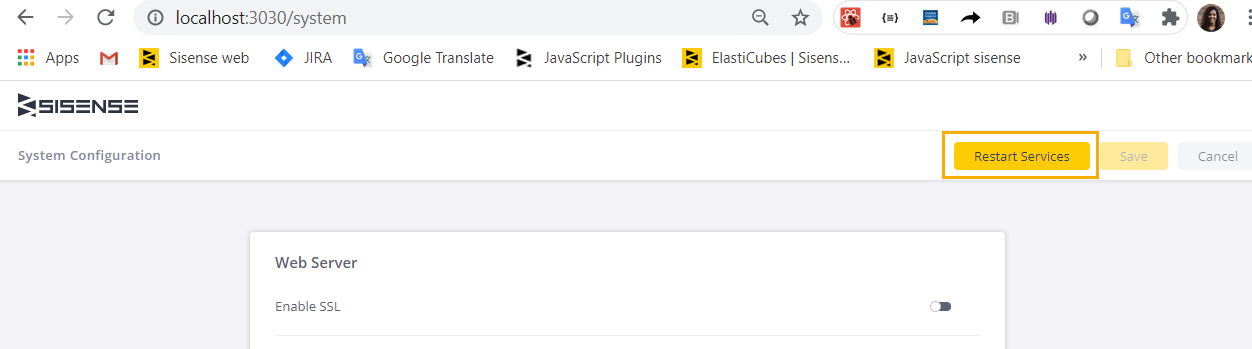
Restart the API-Gateway service by clicking Restart Services.
Refresh the dashboard.
Linux:
Download the installation package for Linux.
Upload {pluginName}.tar.gz to the root folder /opt/sisense/storage or any other location using the File Manager or SSH.
Connect to your server via SSH.
Go to the plugin file folder and extract it:
`cd /opt/sisense/storage && tar -zxvf {pluginName}.tar.gz`
Navigate to the unarchive plugin folder: cd {pluginName}
Run the installation script:
chmod +x install_plugin.sh && sh install_plugin.sh Note: An external-plugins pod is restarted in Kubernetes. Make sure the service is up and running.
Configure the client-side add-on:
Configure /opt/sisesnse/storage/plugins/monitoringSensitiveData/config.js file (read more below).
Configure the interceptor:
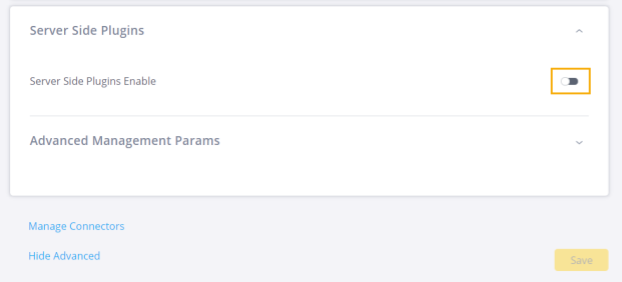
Open the Configuration Manager page.
Scroll to the bottom of the page and click Show Advanced
Expand the Server Side Plugins section and enable the server side plugins.
Click Save.
Confirm that serverSidePlugins.dirPath is identical to the located interceptors path.
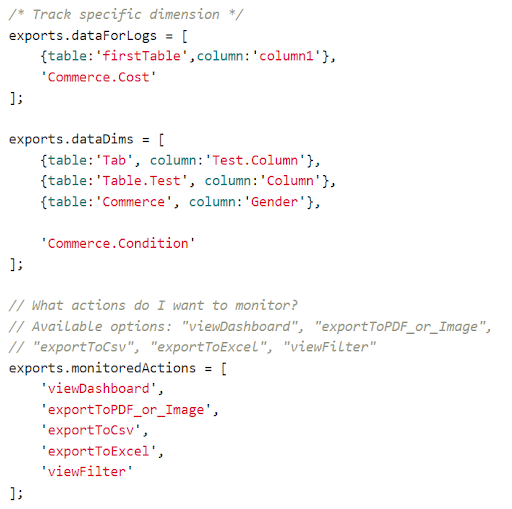
Configure the interceptor:
./opt/sisesnse/storage/serverSidePlugins/monitorSensitiveDataInterceptors/config.js file (read more below).
Refresh the dashboard.
Configuration
Configuring the client-side add-on:
The configuration file is located under ./plugins/monitoringSensitiveData/config.js
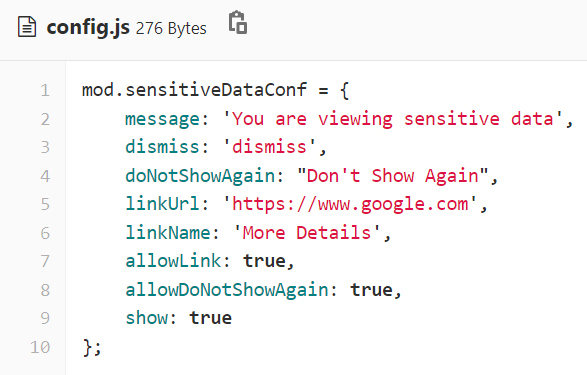
Configure sensitiveDataConf to set the text presented to the user when viewing sensitive PII.
Configuration file example:
message The message presented when the user navigates to a dashboard that contains sensitive PII
dismiss Dismiss sensitive data popup button text
doNotShowAgain “Do not show again” sensitive data popup button text
linkUrl URL to redirect to when clicking the link button (More details)
linkName Link button name (More details)
allowLink true/false, to show or hide the link
allowDoNotShowAgain true/false. Set to true to permanently present the dismiss sensitive data viewed popup
show true/false. Set to true to enable the sensitive data viewed popup